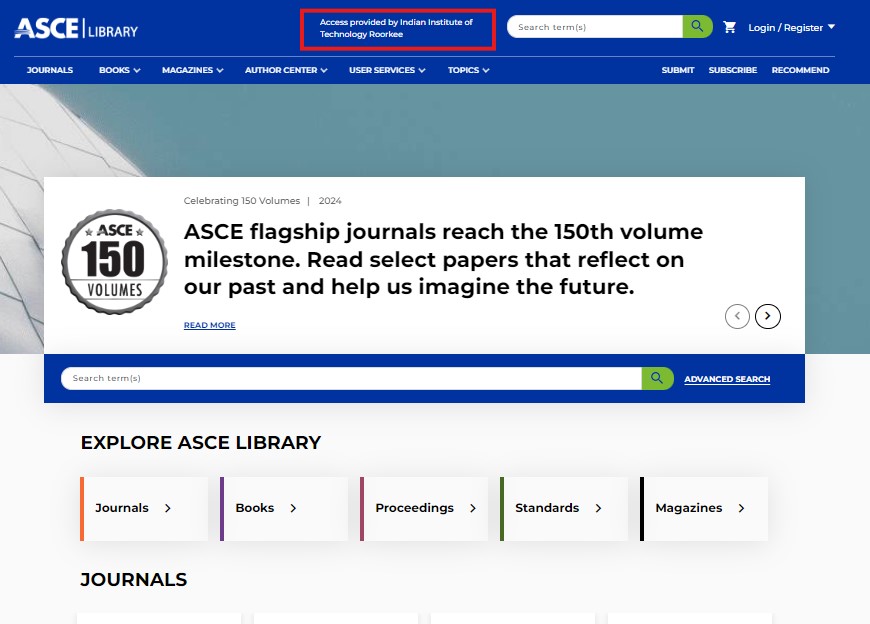
In ASCE Platforms ( https://ascelibrary.org) , seeing your college name appear in the top right corner typically indicates that you are authenticated to access the platform
Sign In :
Click on Login & Register button at the top right end of ASCE Platform
Then Click on Individual Login and Register.
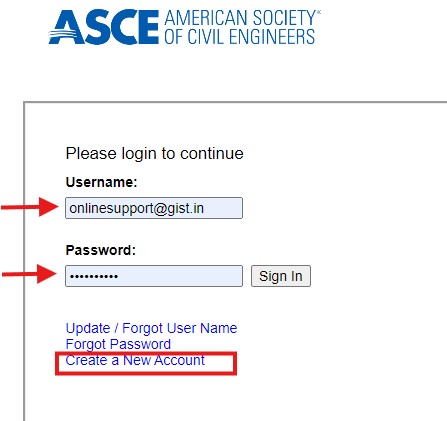
You will redirect to page where it will ask you to put your email Id and Password then click on Sign
Creating New Account :
Access the Registration Page If you do not have an account, please click on the “Create a New Account” button. Ensure you are connected to the campus network and are using your institutional domain email address
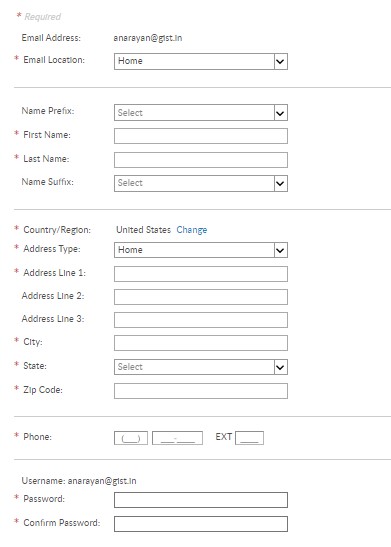
Fill in the Registration Form You will be directed to a new page where you need to provide the following information:
Email Address: Enter your institutional email ID.
Email Location: Specify your email location.
First Name: Input your first name.
Last Name: Input your last name.
Create a Password After filling in your personal information, create a secure password that meets the specified criteria.
Submit the Form Once all required fields are completed, review your information for accuracy and submit the registration form.
Confirmation You will receive a confirmation email to verify your account. Follow the instructions in the email to complete the registration process.