Taylor and Francis Basic Search and Advanced Search
The search functionality on Taylor & Francis Online offers a powerful and efficient way to access a wealth of academic content, including journals, articles, books, and more. Whether you’re a researcher, student, or academic professional, the search benefits include advanced filters, relevant sorting options, access to full-text articles, citation tools, and personalization features, all designed to enhance your academic workflow. The platform provides an intuitive, organized experience for locating relevant scholarly resources, saving time and ensuring that you can easily find the content you need.
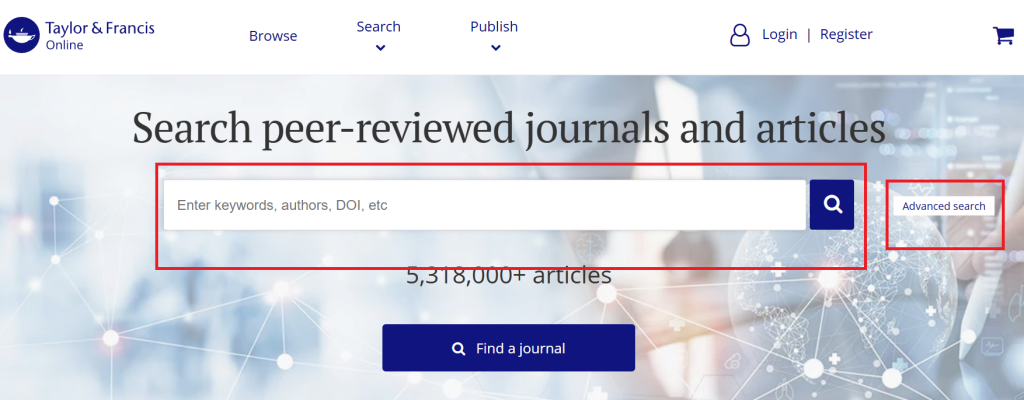
Basic Search
The search bar at the center of the homepage allows you to speedily search the entire site by keywords, author, DOI, article title, journal title etc. From here you can browse journals and databases.
Advanced Search
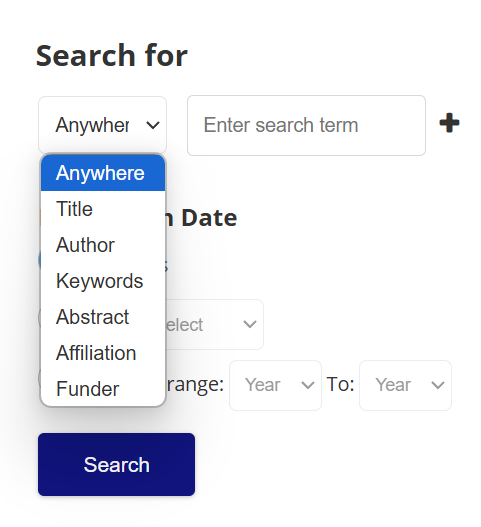
Once you click on Advanced Search, you’ll see a more detailed search interface, which allows you to specify search parameters for more targeted results. The main fields and options you can use include:
Search Fields:
- Keywords / Phrase:
- This field allows you to enter specific keywords, phrases, or terms that you want to search for. It searches the entire text of articles, including titles, abstracts, keywords, and content within the body of the articles.
- Title of Article:
- Use this field to search for articles with specific words or phrases in the title. If you know the exact title of an article or part of it, this will narrow your results to just those articles.
- Author Name:
- If you’re looking for works by a specific author, you can input the author’s name in this field. You can use either the author’s full name or just the surname for a more general search.
- Journal Title:
- If you’re interested in searching within a specific journal, enter the journal’s name here to filter the results to that journal’s content.
- Publisher/Funder:
- If you are looking for articles published by a particular publisher, you can filter by publisher name.
Result Page
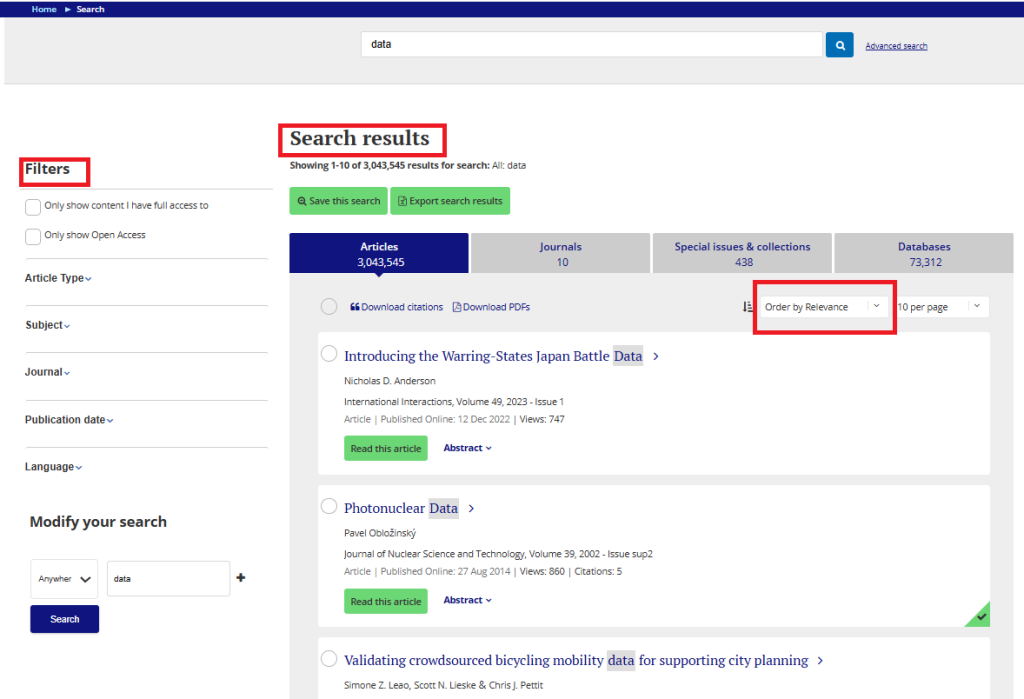
When you perform a search using the search bar or Advanced Search tool, the Result Page will show a list of items that match your query. Each result typically contains the following elements such as,Title of the Article/Book/Journal,Authors,Journal Name,Date of Publication,
- Filters: Typically located on the left-hand side of the page, these allow you to narrow down your search results based on different criteria, such as:
- Content Type (e.g., Articles, Books, Book Chapters, Reviews, etc.)
- Publication Date (e.g., by year or date range)
- Subject Area (e.g., Social Sciences, Science, Arts & Humanities, etc.)
- Journal Title (e.g., choose specific journals)
- Access Type (e.g., Open Access, Subscription-based)
- Sort By Options: This allows you to change the order of the results. Common sorting options include:
- Relevance: Results that best match your search terms.
- Most Recent: Results sorted by the most recently published content.
- Title: Alphabetical sorting by title.
- Citations: Results ordered by the most cited works (if available).